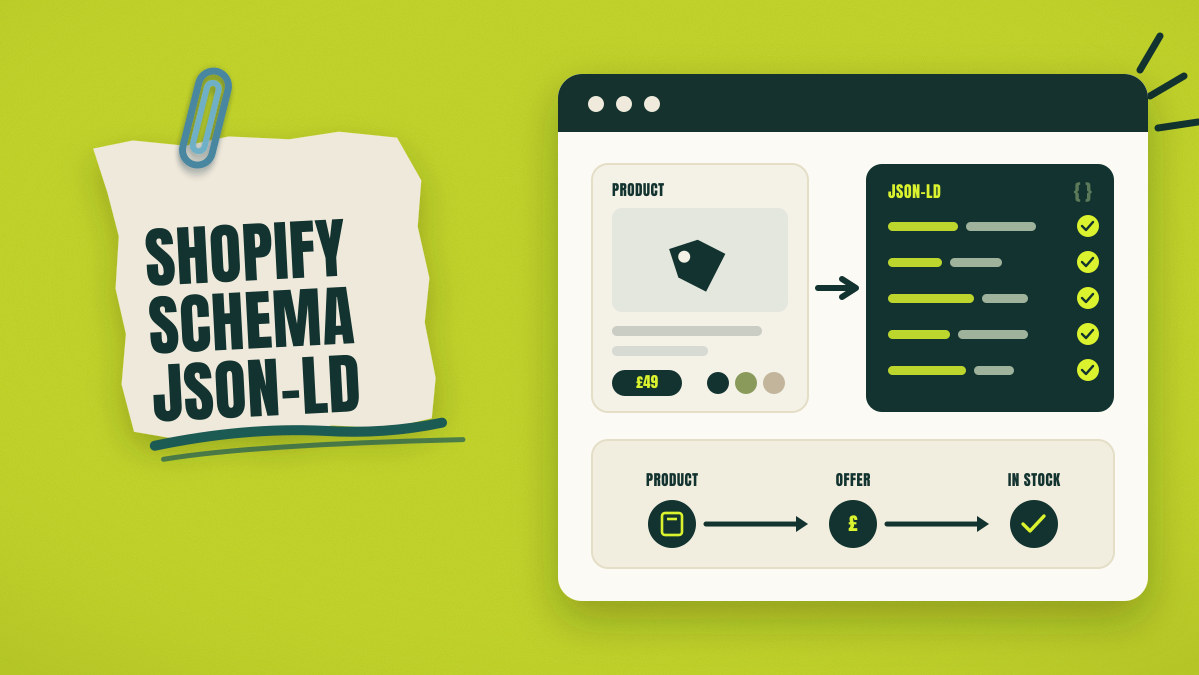
A Shopify product page can contain several JSON-LD blocks for one item. Each block may come from a theme, app, or custom snippet. Different blocks can show different prices, stock values, or product IDs. Google may read those differences after crawling the page.
Start with an audit before adding another JSON-LD block. Find every current block, check each value, then choose one source. The steps below cover products, variants, prices, reviews, policies, and testing.
Example note: Every product, price, SKU, and stock value below shows an example. Replace each example value with verified data from your own Shopify store.
Audit Existing Shopify Schema Before Adding New Code
Start your Shopify schema audit with the final page code. Theme files alone cannot show every block added through apps. Check several page types, find each source, and save your findings.
Test Main Shopify Page Types
One product page cannot show every schema problem. Check pages covering different templates and product conditions. Use a small sample that represents your live store. Eight pages can reveal most theme and app differences.
Main Shopify templates
- Homepage
- Product page
- Collection page
- Blog article
Product conditions for testing
- Product without selectable options
- Product with several variants
- Product with a sale price
- Product without available stock
- Product accepting backorders
- Product showing ratings
Create a worksheet with one row for each tested URL. Add columns for page type, schema type, source, and errors. The sheet becomes your starting audit list.
Find Every JSON-LD Source
Open each page, view its source, then search application/ld+json. Next, search those schema types inside each JSON-LD block. Copy one unique value from each block. Search that value inside theme files and app controls.
Use the following order for every tested Shopify page:
- Check the final page source.
- Copy one unique value.
- Search all theme files.
- Check app embeds.
- Check review app options.
- Check Tag Manager scripts.
Shopify can convert product and article objects through its structured_data filter. Products without variants can output a Product schema block. Products with variants can output a ProductGroup schema block. ProductGroup names one parent product holding selectable variants. Article objects can output an Article schema block.[1]
Save Current Findings
Save what each source adds before changing anything. Include names, prices, currency, stock, ratings, and entity IDs. Mark every missing value and every value difference. Leave removal decisions for the duplicate schema section.
| Schema item | Current source | Current result | Needed action |
|---|---|---|---|
| OnlineStore | Theme | Complete | Check later |
| ProductGroup | Theme | Missing variant images | Check later |
| AggregateRating | Review app | Matches page | Check later |
| Offer price | Schema app | Old value | Check later |
| Return policy | Missing | No value | Add later |
Audit outcome: Your worksheet now lists every current schema source.
How Shopify Product Data Reaches JSON-LD
Shopify stores product details inside products, variants, inventory fields, and metafields. Liquid sections or apps read those details and create JSON-LD. Google reads the final HTML loaded for the page.
A product contains the title, description, vendor, category, and media. A variant contains the SKU, barcode, price, options, and image. Inventory fields show stock and continued selling rules. A metafield stores extra Shopify data created for your store.
Shopify JSON templates control another part of your theme. Files such as templates/product.json list sections and saved section options. Put Liquid or HTML inside a section or snippet referenced there.[2]
Follow one product price through each step:
One wrong Shopify value can reach JSON-LD and connected product systems. Correct the Shopify value before changing several outputs separately.
Which Schema Types Belong on Each Shopify Page?
Each Shopify page needs schema matching its visible purpose. A product page needs product and purchase details. A blog article needs author and publishing details.
| Shopify page | Main schema type | Connected schema type | Priority |
|---|---|---|---|
| Homepage | OnlineStore | WebSite | Core |
| Product without options | Product | Offer | Core |
| Product with options | ProductGroup | Product, Offer | Core |
| Blog article | Article | Person, OnlineStore | Conditional |
| Visible page hierarchy | BreadcrumbList | ListItem | Recommended |
| Physical shop page | LocalBusiness | PostalAddress | Conditional |
| Collection page | CollectionPage | ItemList | Optional |
OnlineStore is a subtype of Organization for ecommerce businesses. One OnlineStore item can hold normal Organization details. A separate Organization item can repeat the same business details.[3]
Use LocalBusiness only for a customer-facing physical location. Use ProductGroup when several variants share one parent product. Use CollectionPage to identify a page containing one product collection.
Page map outcome: Every page type now has one suitable schema model.
Choose the Right Shopify Schema Method
Choose a method after checking your current output. Store complexity, staff skills, and future updates affect the decision. Most stores use theme output, custom Liquid, or an app.
Retain the Theme Output
Retain theme output when it already contains accurate product details. Check every important product state before making that choice. Prices, currency, stock, variants, and IDs must match the page.
Use the following pass list before retaining theme output:
- Product name matches the page
- Variant links open the chosen options
- Price and currency match the page
- Stock status matches checkout
- One Product model appears
Shopify themes can use the native structured_data filter for Product, ProductGroup, and Article output.[1]
Use Custom Shopify Liquid
Use custom Liquid when your store needs full field control. Custom code can read brand metafields, variant images, and permanent IDs. Your team must review that code after theme changes.
| Store need | Custom Liquid use |
|---|---|
| Permanent IDs | Create fixed @id values |
| Dedicated brand field | Read a product metafield |
| Variant image control | Read each variant image |
| Store policy links | Connect homepage policy items |
| One product source | Publish one product model |
Use Shopify json filter when adding dynamic theme values. The filter creates JSON and escapes quotation marks inside values.[4]
Use a Shopify Schema App
Use an app when your team cannot maintain Liquid code. Check the app before installation, since many apps add Product markup. The app should support your variants, markets, reviews, shipping, and returns.
Check these 8 points before choosing any schema app:
- ProductGroup support
- Shopify Markets support
- Review app support
- Permanent
@idvalues - Theme schema controls
- App removal steps
- Shipping and return support
- Change history
Headless Shopify stores can create JSON-LD inside their storefront application. Test the first HTML response and the final browser output.
Connect Store and Product Entities With Shared IDs
An entity is one named item, such as a store or product. Shared IDs connect each item without creating another copy. Use permanent IDs across every related page.
Create one OnlineStore ID for the ecommerce business. Create one WebSite ID for the main website. Assign each Product or ProductGroup its own page ID. Link each Offer back to the OnlineStore ID.
Use readable ID patterns across every connected page entity:
The example.com domain only shows the required ID format. Replace that domain with your live store domain. Use the same ID whenever another schema item names it.
Connection outcome: Shared IDs connect the store, website, products, and Offers.
Add OnlineStore and WebSite Schema
Use OnlineStore to identify the ecommerce business. OnlineStore already belongs under the Organization type. Use WebSite for the website, then connect its publisher to OnlineStore.[3]
Add these verified details inside the homepage schema block:
- Store name
- Canonical homepage URL
- Logo URL
- Customer service details
- Verified social profiles
- WebSite item
- Shipping policy connection
- Return policy connection
The following code contains placeholders for every store detail. Replace each uppercase value with verified store information.
Use only public details shown on your store. Check that the logo URL loads without login access. Add only verified, official social profiles under sameAs.
Google recommends OnlineStore for businesses selling products through ecommerce websites. Google also supports shipping and return details under that business item.[3]
Homepage output: The page identifies one store and one website.
Add Product JSON-LD Without Variants
Use Product when the page sells one fixed product option. Product holds product details, while Offer holds purchase details. The Offer should include price, currency, stock, URL, and seller.
A canonical URL is the main URL chosen for one page. A merchant listing is a Google product result for purchasable items.
Map each Shopify value before adding code:
| Shopify source | Schema property | Check |
|---|---|---|
product.title |
name |
Match the visible title |
| Product description | description |
Use accurate page text |
| Product image | image |
Use a public image URL |
| Canonical URL | url |
Use the main product URL |
| Brand metafield | brand |
Confirm the public brand |
| Variant SKU | sku |
Identify the selling unit |
| Variant barcode | gtin |
Check the GTIN format |
| Variant price | price |
Match the visible price |
| Market currency | priceCurrency |
Match the chosen market |
| Purchase state | availability |
Match checkout access |
The following Liquid shows a starting pattern. Test it inside a duplicate theme before publication. Adapt stock rules for preorders, store-only products, and discontinued products.
Shopify variant prices use currency subunits and the customer market currency. Zero-decimal currencies still include 2 extra digits inside Liquid values.[5]
Shopify image_url returns a CDN URL beginning with 2 slashes. The code adds https: before sending that image URL.[15]
Google merchant listings require an Offer for products sold on the page. Product snippets can use Offer or AggregateOffer, but merchant listings need Offer.[6]
Product output: The page contains one Product, one Offer, and one seller.
Add ProductGroup JSON-LD for Variants
Use ProductGroup when shoppers choose options within one parent product. Shared product details belong inside the parent ProductGroup item. Each variant needs its own Product and Offer details.[7]
Example only: A jacket has black and green colors. Each color has small, medium, and large sizes. The example therefore contains 6 variants.
Add Shared ProductGroup Details
Place every shared product detail inside the ProductGroup item. Add the product name, description, brand, group ID, and shared images. Use variesBy for the option types creating each variant.
| ProductGroup details | Variant Product details |
|---|---|
name |
sku |
description |
gtin |
brand |
color |
productGroupID |
size |
variesBy |
variant image |
| shared images | variant URL |
hasVariant |
Offer and stock |
For the jacket example, variesBy contains color and size. A product varying only through size should list size alone.
Add Every Variant as Product
Create one Product for every purchasable option combination. Add its SKU, verified GTIN, options, image, URL, and Offer. Connect every variant through hasVariant and isVariantOf inside JSON-LD.
Example only
| Variant | Example SKU | Example price | Example stock |
|---|---|---|---|
| Black, small | JKT-BLK-S | £49 | InStock |
| Black, medium | JKT-BLK-M | £49 | InStock |
| Black, large | JKT-BLK-L | £49 | OutOfStock |
| Green, small | JKT-GRN-S | £49 | InStock |
| Green, medium | JKT-GRN-M | £49 | InStock |
| Green, large | JKT-GRN-L | £49 | BackOrder |
The values above show the required data pattern. They only show the data format for a fictional example.
The following Liquid baseline supports color, size, material, and pattern. Test the code inside a duplicate theme before publication.
Add verified GTIN values only after checking their code lengths. Products above 250 variants need another data access method.
Connect Variant URLs and Canonical URL
Every variant URL should open the matching chosen options. The URL should also show the matching image, price, stock, and cart choice. Use one canonical URL for the parent ProductGroup on single-page products.[7]
Check every variant URL against these 5 page details:
- The correct color opens.
- The correct size opens.
- The matching image appears.
- The matching price appears.
- The cart receives that variant.
Example only:
The example URL should open one selected color and size. Replace the example handle and ID with live Shopify values.
Shopify limits product.variants to 250 variants inside Liquid. Code needing every variant can miss later variants beyond that limit.[8]
Variant output: One ProductGroup connects every live, purchasable variant.
Map Product IDs, Prices, and Stock Correctly
Product IDs, prices, and stock values require separate checks. Each field has different Shopify rules and Google requirements.
Brand, SKU, GTIN, and MPN
Use verified product IDs from Shopify or your product supplier. Vendor can show a supplier name while the public brand differs. A barcode field can contain a value with an invalid GTIN length.
| Shopify value | Schema use | Use condition |
|---|---|---|
| Vendor | Brand | Vendor matches the public brand |
| Variant SKU | SKU | SKU identifies that variant |
| Variant barcode | GTIN | Barcode passes GTIN checks |
| Manufacturer code | MPN | Manufacturer issued the code |
| Empty field | Omit | No verified value exists |
Use the matching specific GTIN property for each verified code length. Google also accepts the general gtin property within supported product markup.[6]
Example only: A store uses Vendor for its wholesale supplier. A brand metafield holds the public product brand. Product brand should use the verified brand metafield.
Price, Currency, and Sale Price
The JSON-LD price should match the price shoppers can pay. Use the currency shown for the active Shopify market. Check the page, JSON-LD, Merchant Center, and checkout together.
Example only:
| Surface | Wrong example | Correct example |
|---|---|---|
| UK product page | £49 | £49 |
| JSON-LD | $59 | £49 |
| Merchant Center | £52 | £49 |
| Checkout | £49 | £49 |
The table shows sample values created only for explanation. Correct every system until all 4 surfaces show £49 GBP.
Google supports sale price markup through Offer and priceSpecification. StrikethroughPrice can identify the regular price shown with a line.[6]
Availability, Backorders, and Preorders
Use the shoppers purchase option, beyond raw inventory quantity. Zero stock can still allow a backorder. A future release can accept a preorder before stock arrives.
| Shopper option | Schema value |
|---|---|
| Product can ship now | InStock |
| Purchase button remains unavailable | OutOfStock |
| Order accepted before restock | BackOrder |
| Future release accepts orders | PreOrder |
| Product sales have ended | Discontinued |
| Purchase available inside a shop | InStoreOnly |
Example only: A green large jacket has zero units. Checkout still accepts orders and shows backorder text. Its Offer can use BackOrder after page verification.
Commerce check: Every ID, price, currency, and stock value matches Shopify.
Add Ratings, Shipping, and Return Rules
Add rating markup only from review data visible on-page. Add common shipping and return rules under OnlineStore. Add product-level exceptions only where one product uses different rules.
Add Visible Ratings and Reviews
Use AggregateRating only when the page shows the same rating. The rating value and count must match the visible product details. Check which theme or app supplies the current values.
Shopify defines product rating fields named reviews.rating and reviews.rating_count. Themes and review apps can use those shared fields.[9]
Example only: A product page shows 4.7 from 186 ratings. JSON-LD may use 4.7 and 186 after checking the page. Remove AggregateRating when the page hides those values.
Google requires JSON-LD details to describe visible page content.[10]
Add Common Shipping Rules
Add common delivery details under OnlineStore through hasShippingService. ShippingService can include regions, costs, handling time, and delivery time. Use Offer shippingDetails when one product needs different delivery details.[11]
Example only: A store offers free UK shipping above £60. One oversized product charges another delivery fee. Add that product exception under its Offer.
Add Common Return Rules
Add the common return rule under OnlineStore through hasMerchantReturnPolicy. MerchantReturnPolicy can include countries, days, methods, fees, and refunds. Add an Offer-level policy when one product has another return rule.[12]
Include the following return details within your common store policy:
- Applicable country
- Return window
- Return method
- Return shipping fee
- Refund type
- Product exceptions
- Non-returnable categories
Example only: Standard products have a 30-day return window. Clearance products may have a no-return policy shown on-page. Use an Offer-level exception for those clearance products.
Policy check: Ratings and policies match visible store information.
Remove Duplicate Product and Store Schema
Duplicate schema appears when several sources describe the same product or store. Choose one accurate source for each main schema item. Remove or disable the other block after checking connected page features.
| Problem | Common source | Required change |
|---|---|---|
| 2 Product blocks | Theme and schema app | Choose one Product source |
| 2 rating blocks | Theme and review app | Use one visible rating source |
| Different prices | Cached app and Liquid | Use current Shopify price |
| Several store IDs | Theme and app | Use one store ID |
| Product and ProductGroup | Old and new output | Use the correct variant model |
Use the following removal process for each duplicate block:
- Find the source creating the extra block.
- Check any visible feature connected with that source.
- Disable only its schema output.
- Test the final page source again.
- Save the chosen source inside theme notes.
The audit section finds every source and saves its output. The duplicate section selects the source that remains active.
Duplicate check: Each page contains one accurate product model and store ID.
Match JSON-LD With Google Merchant Center
Compare each variant across the product page, JSON-LD, Merchant Center, and checkout. All 4 surfaces should show the same ID, price, currency, and stock.
Example only:
| Field | Product page | JSON-LD | Merchant Center | Checkout |
|---|---|---|---|---|
| SKU | JKT-GRN-M | JKT-GRN-M | JKT-GRN-M | JKT-GRN-M |
| Price | £49 | £49 | £49 | £49 |
| Currency | GBP | GBP | GBP | GBP |
| Stock | Backorder | BackOrder | Backorder | Purchasable |
| Variant URL | Green, medium | Green, medium | Green, medium | Green, medium |
| GTIN | Verified value | Same value | Same value | N/A |
The table shows an example matching process. It only shows the field matching process.
Google recommends using product page markup and Merchant Center feeds together. Each source can help Google verify product details.[13]
Change the Shopify source value first when a mismatch appears. Then confirm that each connected app shows the corrected value. Send the updated data to Merchant Center after page verification.
Feed check: Every product system shows the same purchasable Offer.
Add Schema to Other Shopify Pages
Add secondary schema only where the page content supports it. Product implementation should remain the first priority for an ecommerce store.
| Page feature | Schema type | Add when | Main risk |
|---|---|---|---|
| Visible hierarchy | BreadcrumbList | Page shows one stable hierarchy | Several collection trails |
| Blog article | Article | Page shows author and dates | Duplicate article output |
| Collection page | CollectionPage | Page represents one collection | Unsupported feature claims |
| Ordered product list | ItemList | Visible order has value | Incomplete Product data |
| Physical shop | LocalBusiness | Customers visit that address | Wrong business subtype |
| Homepage | WebSite | Website needs one main identity | Duplicate IDs |
BreadcrumbList should follow one stable hierarchy shown on the page. Products appearing inside several collections need one useful primary hierarchy. Use canonical URLs inside every breadcrumb item.[14]
Article applies to blog posts containing author and publication details. Shopify can output Article through its native filter.[1]
CollectionPage identifies a page containing one defined product collection. ItemList can show a meaningful visible order. Neither type creates a dedicated Shopify collection rich result.
LocalBusiness applies only where customers can visit a physical location. Use a subtype matching that location and business activity.
Test and Fix Shopify Schema Markup
Test JSON syntax, Schema.org properties, Google support, and final page output. Each testing stage finds a different problem inside your output.
Test JSON-LD and Google Support
Use the tools in the following order:
A JSON checker finds broken commas and quotation marks. Schema Markup Validator checks Schema.org types and properties. Rich Results Test checks Google product feature support. URL Inspection shows how Google reads the live page.
Test Final Pages and Product Conditions
Test live URLs covering every important product condition. Pasted code cannot show market, app, or browser differences. Compare each JSON-LD value with the visible page.
| Test page | Required check |
|---|---|
| Product without variants | Product and Offer |
| Product with variants | ProductGroup and every variant |
| Sale product | Current price and currency |
| Product without stock | Purchase button and availability |
| Backorder product | BackOrder value and page text |
| Product with ratings | Visible rating and count |
| Regional URL | Local price and currency |
| Product without GTIN | No invented identifier |
Fix Search Console and Merchant Center Errors
Find the affected property before changing Shopify data. Then find the Shopify field, app, or Liquid block producing it. Correct that source and retest the live URL.
Use one error sheet for every reported schema problem:
| Audit field | Required detail |
|---|---|
| Error | Exact report name |
| Property | Affected schema property |
| Shopify source | Field, app, or Liquid block |
| Correction | Required source change |
| Retest | Tool and live URL |
Check these common schema issues before optional warnings:
- Missing Offer price
- Currency mismatch
- Invalid GTIN
- Duplicate Product
- Variant URL mismatch
- Missing
variesBy - Hidden AggregateRating
- Incorrect availability
- Broken JSON
- Feed and page mismatch
Valid schema can qualify a page for Google product features. Google controls the final display and offers no display promise.[10]
Testing outcome: Tested pages contain no critical errors or value mismatches.
Publish Changes Safely and Monitor Them
Use a duplicate Shopify theme before changing the live theme. Preview pages can support code and visual checks. Complete Google testing again after publishing a public URL.
Duplicate the active theme before editing Liquid. Add one controlled schema source inside that copy. Test every product condition inside preview pages. Compare old and new page source before publication.
After publishing, inspect important live URLs again. Check Search Console and Merchant Center for new issues. Test again after theme updates or app changes.
Save a dated theme copy and a change list. Include changed snippets, removed blocks, source choices, and tested URLs.
| Time | Check |
|---|---|
| Same day | Live JSON-LD and crawl access |
| 7 days | Search Console and Merchant Center issues |
| 30 days | Recurring price, stock, or ID mismatches |
| Theme update | Missing or duplicate schema blocks |
| App update | Product, rating, or store changes |
Publication outcome: The live store keeps one tested schema source.
Shopify Schema Markup Implementation Checklist
Use the following checklist from audit through monitoring. Finish each group before starting the next group.
Audit
- Test every main template
- Find every JSON-LD source
- Save every entity ID
- Save price, currency, stock, and rating values
Architecture
- Choose the correct page types
- Create permanent store IDs
- Connect Product with Offer
- Connect Offer with OnlineStore
- Connect variants with ProductGroup
Product Data
- Verify brand and product IDs
- Match price and currency
- Match purchase availability
- Check every variant URL
- Check
variesByagainst Shopify options - Verify visible rating data
- Add shipping and return rules
Quality Checks
- Remove duplicate schema blocks
- Compare Merchant Center values
- Test every product condition
- Test the active market currency
- Check image and canonical URLs
- Publish through a duplicate theme
- Monitor future theme changes
Complete work requires matching details across page, JSON-LD, feed, and checkout. Repeat the audit after major theme, app, price, or catalogue changes.
Frequently Asked Questions
Does Shopify add product schema automatically?
Shopify provides a structured_data Liquid filter for products and articles. Your theme decides where that filter appears. Check final page source before adding another JSON-LD block.[1]
Where should JSON-LD go inside Shopify?
Add JSON-LD inside a Liquid section, snippet, app embed, or storefront application. JSON templates such as product.json store section lists and options.[2]
Does Shopify support ProductGroup?
Shopify can output ProductGroup when a product contains one or several variants. Check every generated property against your live product data.[1]
Can Shopify metafields supply JSON-LD values?
Yes, Liquid can read product and variant metafields. Use metafields for verified data missing from standard product fields. Check every metafield value inside the final published page source.
Should a schema app replace theme output?
Use one main Product source after comparing both outputs. Choose the source with accurate variants, prices, stock, ratings, and permanent IDs.
How can I find duplicate Product schema?
View the page source and search every application/ld+json block. Count Product and ProductGroup blocks, then trace each block to its source.
Does valid JSON-LD guarantee Google product features?
Valid JSON-LD can qualify a page for supported Google features. Google controls the final display and makes no display promise.[10]
Source Notes
- Shopify Developer documentation for the
structured_dataLiquid filter. - Shopify Developer documentation for JSON templates.
- Google Search Central documentation for Organization and OnlineStore.
- Shopify Developer documentation for the
jsonLiquid filter. - Shopify Developer documentation for variant and currency Liquid objects.
- Google Search Central documentation for merchant listing markup.
- Google Search Central documentation for ProductGroup and variants.
- Shopify Developer documentation for high-variant products.
- Shopify Developer documentation for standard rating metafields.
- Google Search Central rules for schema markup.
- Google Search Central documentation for ShippingService.
- Google Search Central documentation for MerchantReturnPolicy.
- Google Search Central documentation for Product markup.
- Google Search Central documentation for BreadcrumbList.
- Shopify Developer documentation for
image_url.

Manish Singh is Head of Generative AI at SEO Noida and has 14+ years of experience in SEO, UX, and digital marketing. He focuses on how Google and AI platforms find, interpret, and cite web content. His articles cover AI SEO, GEO, AEO, LLM SEO, entity optimization, content architecture, and visibility measurement, drawing on website audits and campaign work.